The complete journey
Seven chapters to understand Zenoba. Plan with profiles and requirements, then choose people. Legacy progress indicators in chapters 5 and 6 do not yet measure this new workflow.
Fifteen minutes: the three chapters marked “the essentials”
1 · Create your workspace
the essentialsThe industry you pick installs the modules, the domain lists and eight positions — eight chairs to fill, not eight people. That is what lets you plan before you know who will do the work.
A position is a seat, not a person. Zenoba guessed what your team would be made of; only the people are missing.
Done when a project exists in your workspace.
- 1.Name your workspace
- 2.Choose your role if you want tailored suggestions
- 3.Create your first project with the assistant
- 4.Invite the people who need to contribute
- 5.Set access project by project
2 · Document the company
Fifteen records describe your organization: profile, infrastructure, security, contracts, constraints. Drop a document — a tender, a policy, an inventory — and what is extracted fills the records, citing its source. This is where the AI gets its context for every plan.
Done when at least one company record holds a value.
- 1.Open a record to see what it expects and what is missing
- 2.Drop a document (tender, policy, contract): what is extracted fills the record and cites its source
- 3.Or paste free text, if you have no file at hand
- 4.Correct by hand whatever the extraction misread — you always decide
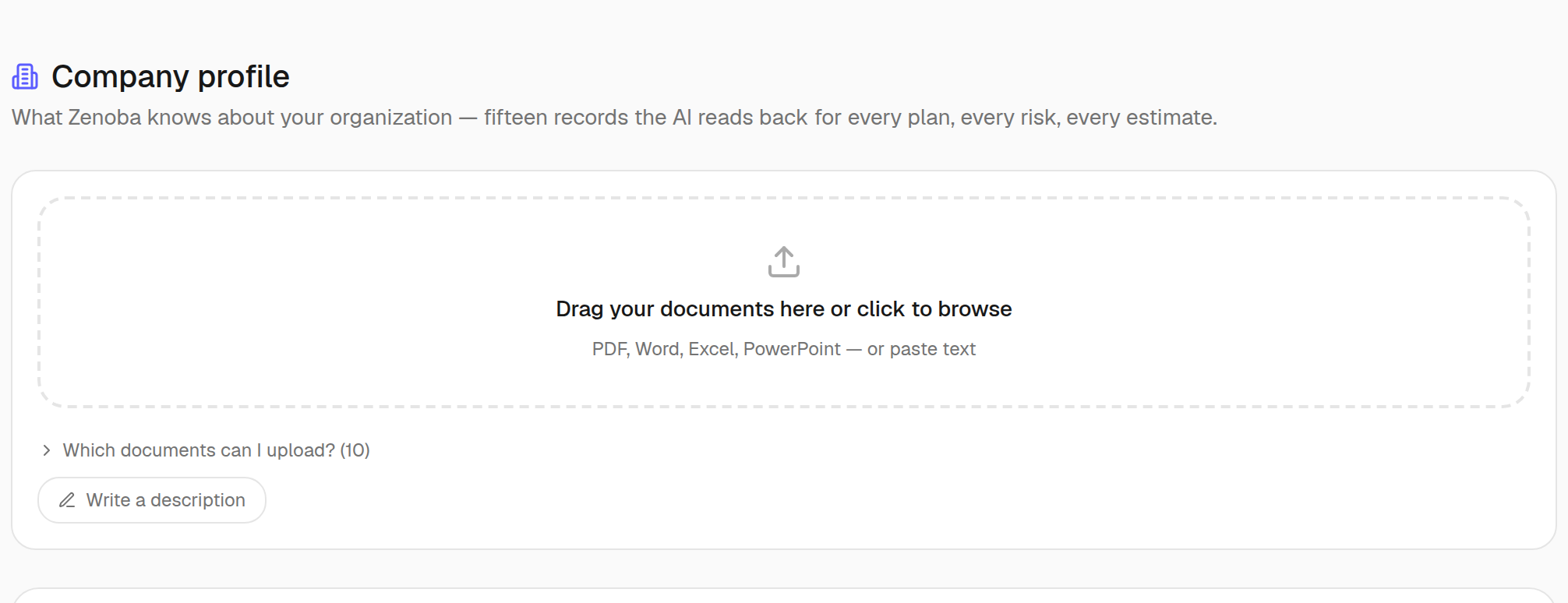
- 1A document — tender, policy, inventory
- 2Or plain text, if you have no file
3 · Document the project
Ten records per project, and an assistant that asks for what is missing instead of waiting for a filled form. Drop the specification or the kick-off notes: the document is kept, read, and what it teaches goes into the records.
Done when a document has been dropped on the project.
- 1.Drop what you have: specification, tender, kick-off notes
- 2.The document is kept, read, and what it teaches goes into the project records
- 3.The collection then names what is still missing, record by record
- 4.Answer it, or declare that a point does not apply
- 5.The rest of the hub follows: governance, planning, integrations
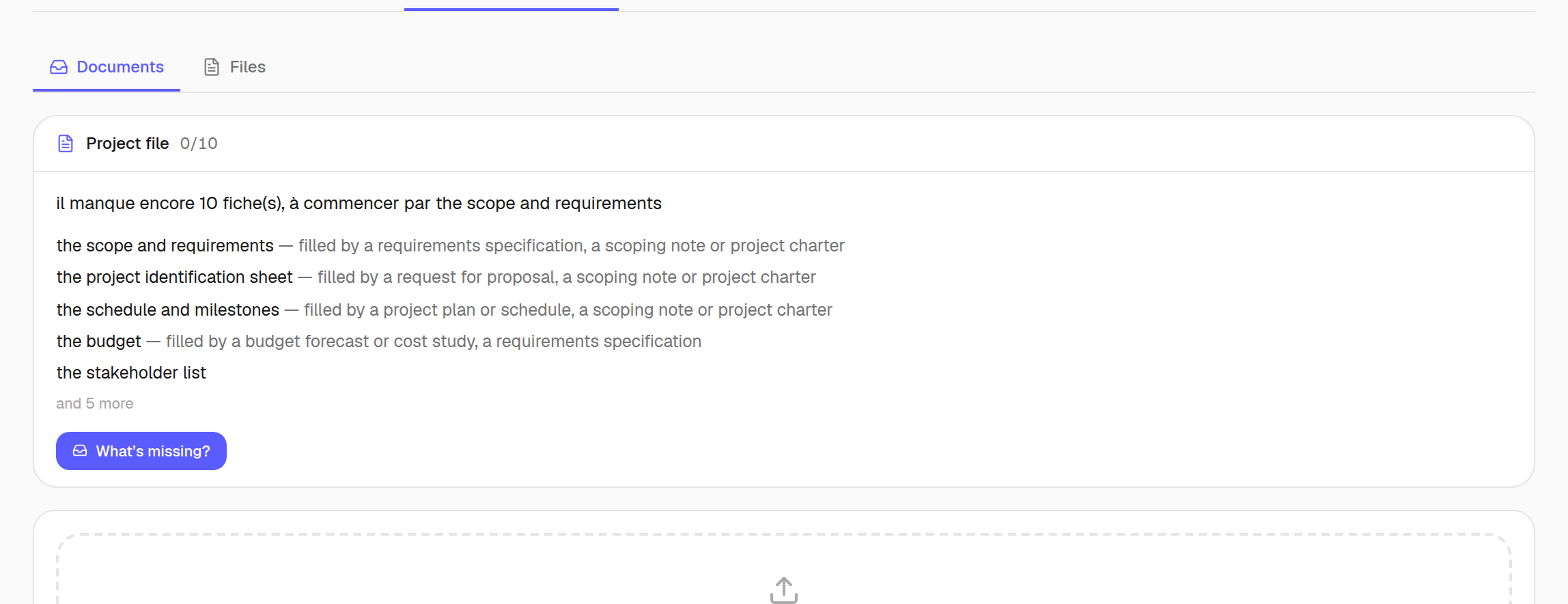
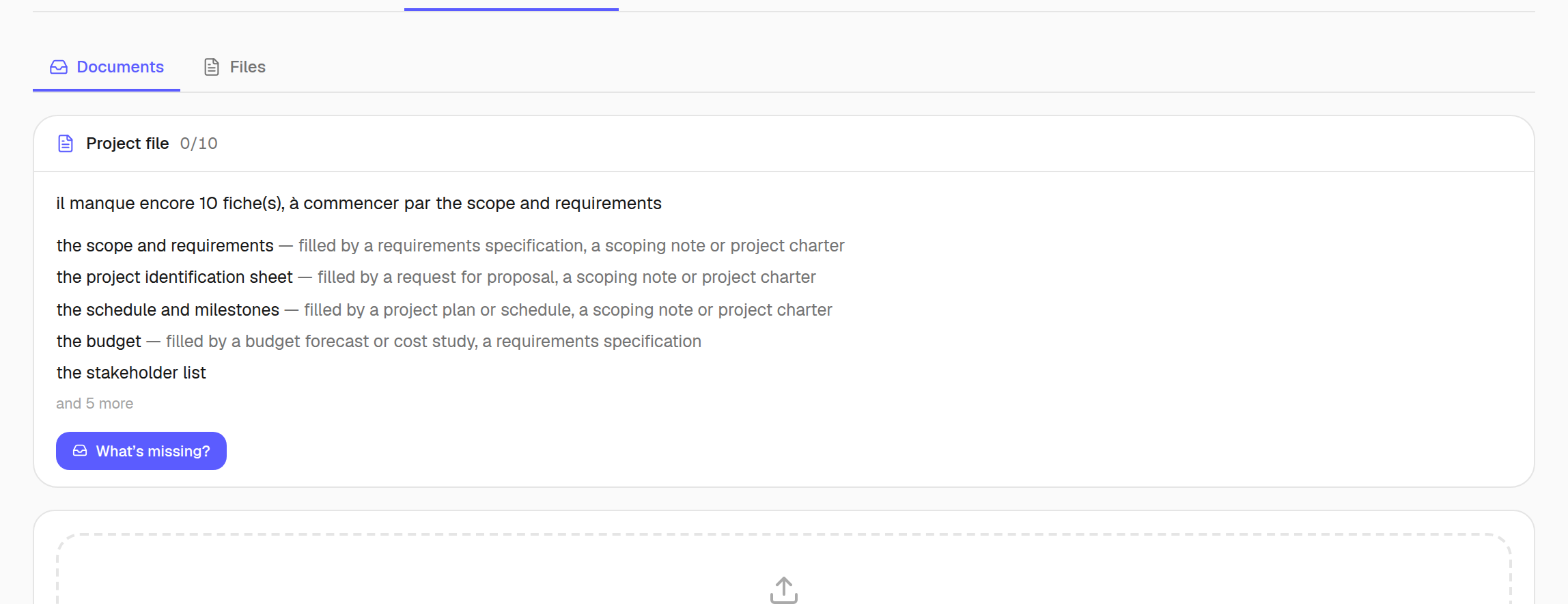
- 1What is still missing, named record by record
4 · Generate the plan
The assistant reads your description AND the documents you give it, then returns phases, tasks, dependencies and an “Initial plan” baseline. You keep, you correct, you undo — nothing is irreversible.
Done when a plan has been generated for a project.
- 1.Choose the company and describe the expected outcome
- 2.Open Document the company to complete its records, then close the panel to return to your draft
- 3.Choose the quick path or detailed analysis and add useful sources
- 4.Generate and review the plan and Proposed team
- 5.Review profiles, seat counts, their tasks and dates
- 6.Create the project, then fill seats in Team
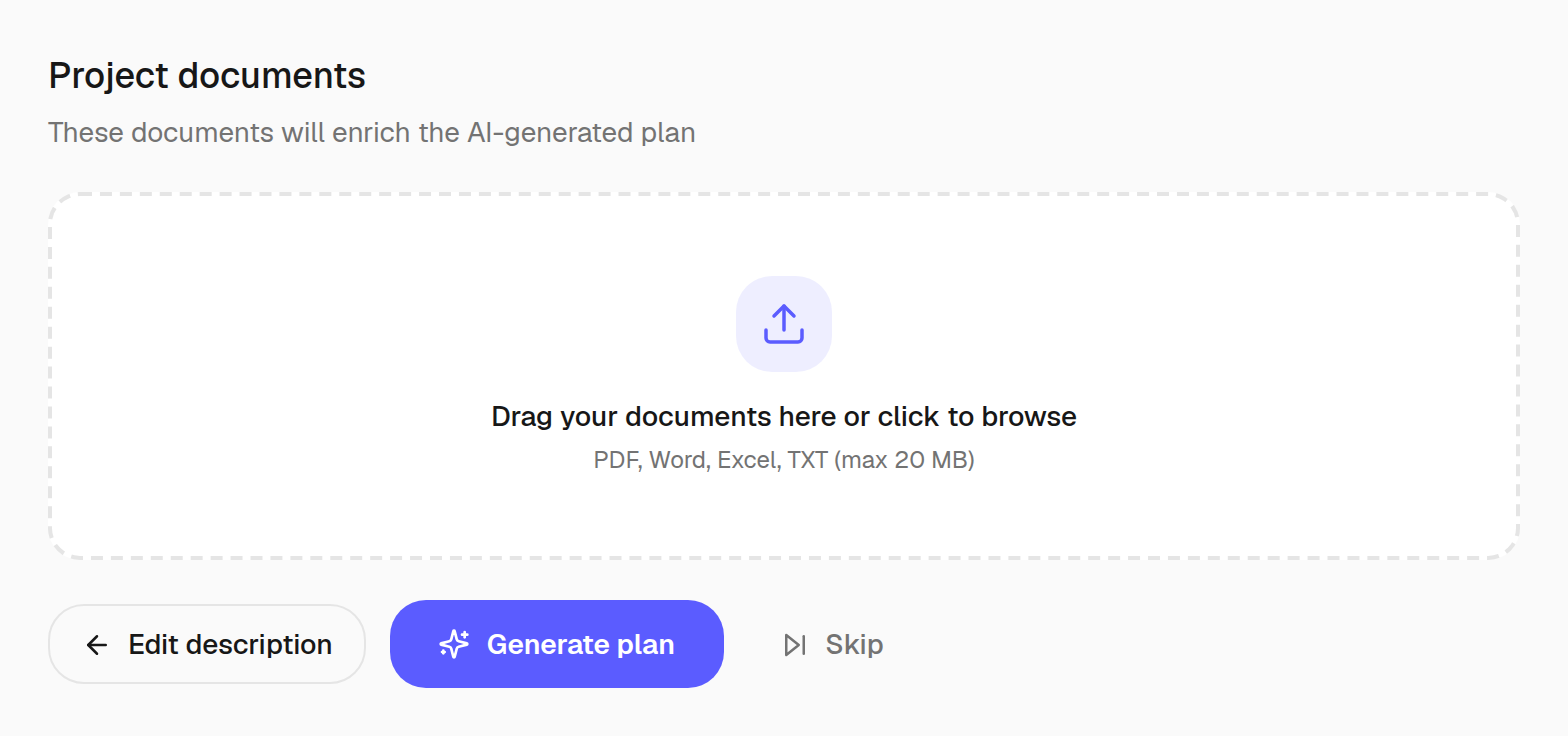
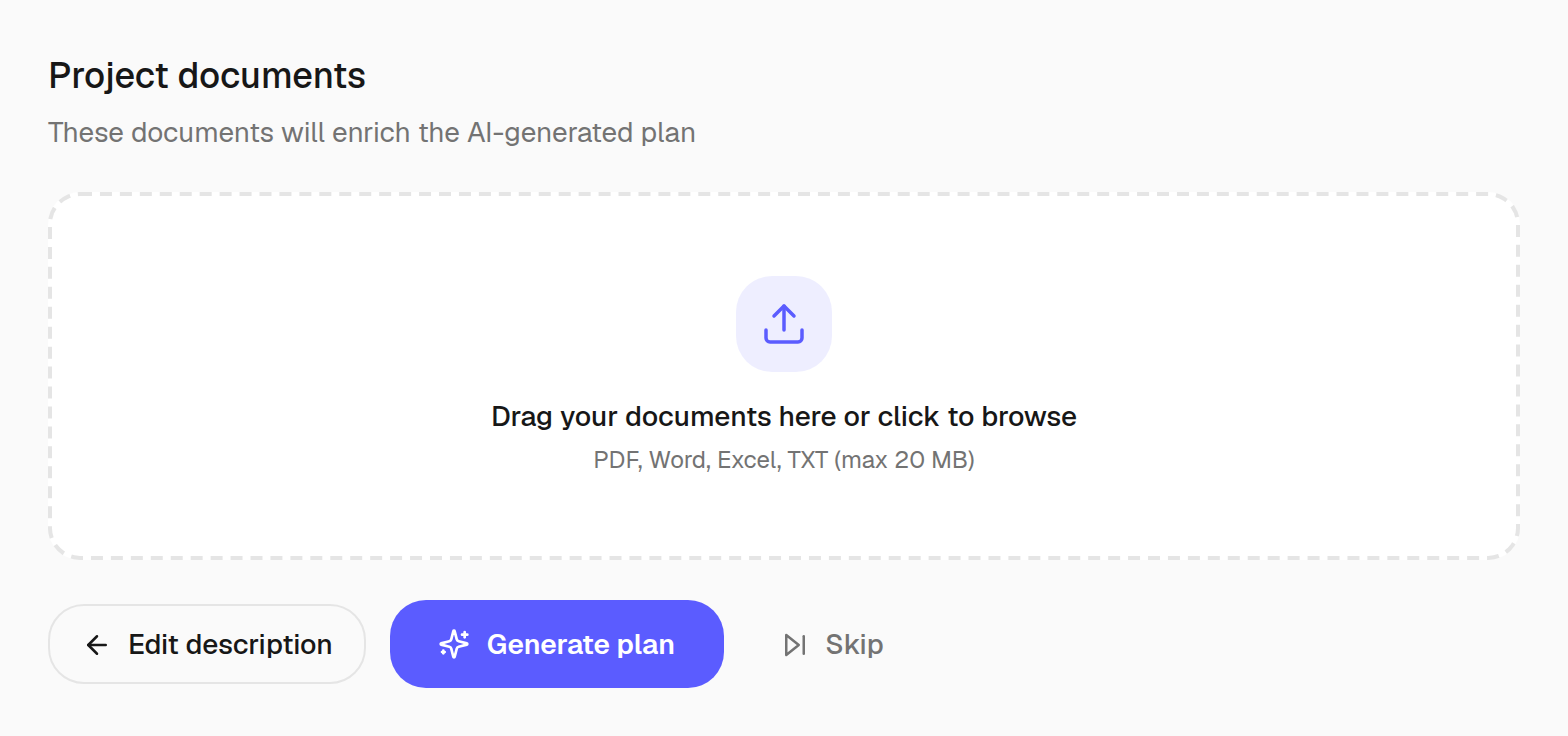
- 1What the assistant will read before writing the plan
- 2And it returns phases, tasks and dependencies
5 · Profiles and people in the directory
the essentialsThe directory holds people and profiles. A person can be planned without an account. Create project seats before you know who will fill them.
Reusable profiles, seats in each project, people to fill them.
Done when a legacy technical profile has been filled. Legacy indicator: does not validate new requirements.
- 1.People: add someone by name — inviting them to get an account is a separate step
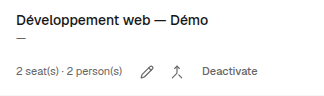
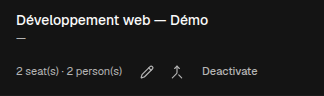
- 2.Profiles: create, edit, deactivate or merge roles; a profile is never deleted
- 3.Availability: each person week by week, seats to fill at the top; click a cell to record time off
- 4.A person’s card: their history, “Replace in all projects”, and departure, seat by seat
6 · Assign people and tasks
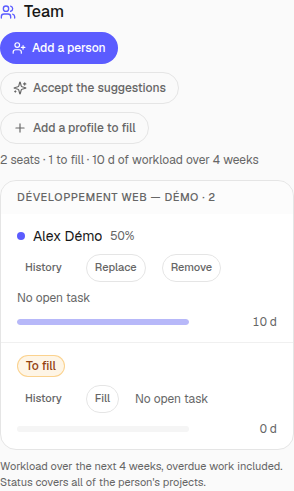
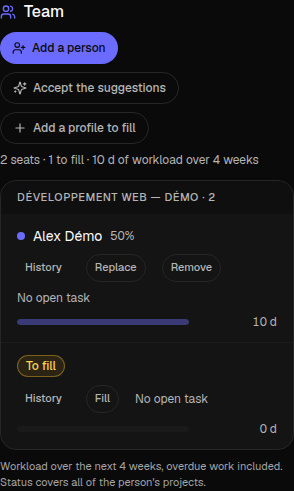
the essentialsIn Team, add a person or a profile to fill. The planning assignee picker assigns tasks to seats. A dated replacement changes the occupant and preserves the history of completed work.
Assign tasks to seats, then fill the seats with people.
Done when a task is assigned to a legacy technical profile. Legacy indicator: check the requirement counter and task owners yourself.
- 1.Add a person (from the directory, or just a name) or a profile to fill
- 2.Assign tasks from the Gantt, table or board: one picker that shows who is free
- 3.Fill a seat: Zenoba suggests people with the right profile who are available over the period
- 4.To change person, “Replace” on a date: open tasks follow, completed tasks stay with whoever did them
- 5.In Project access, give a role (project manager, observer…) to people who hold no seat
7 · Your words, not ours
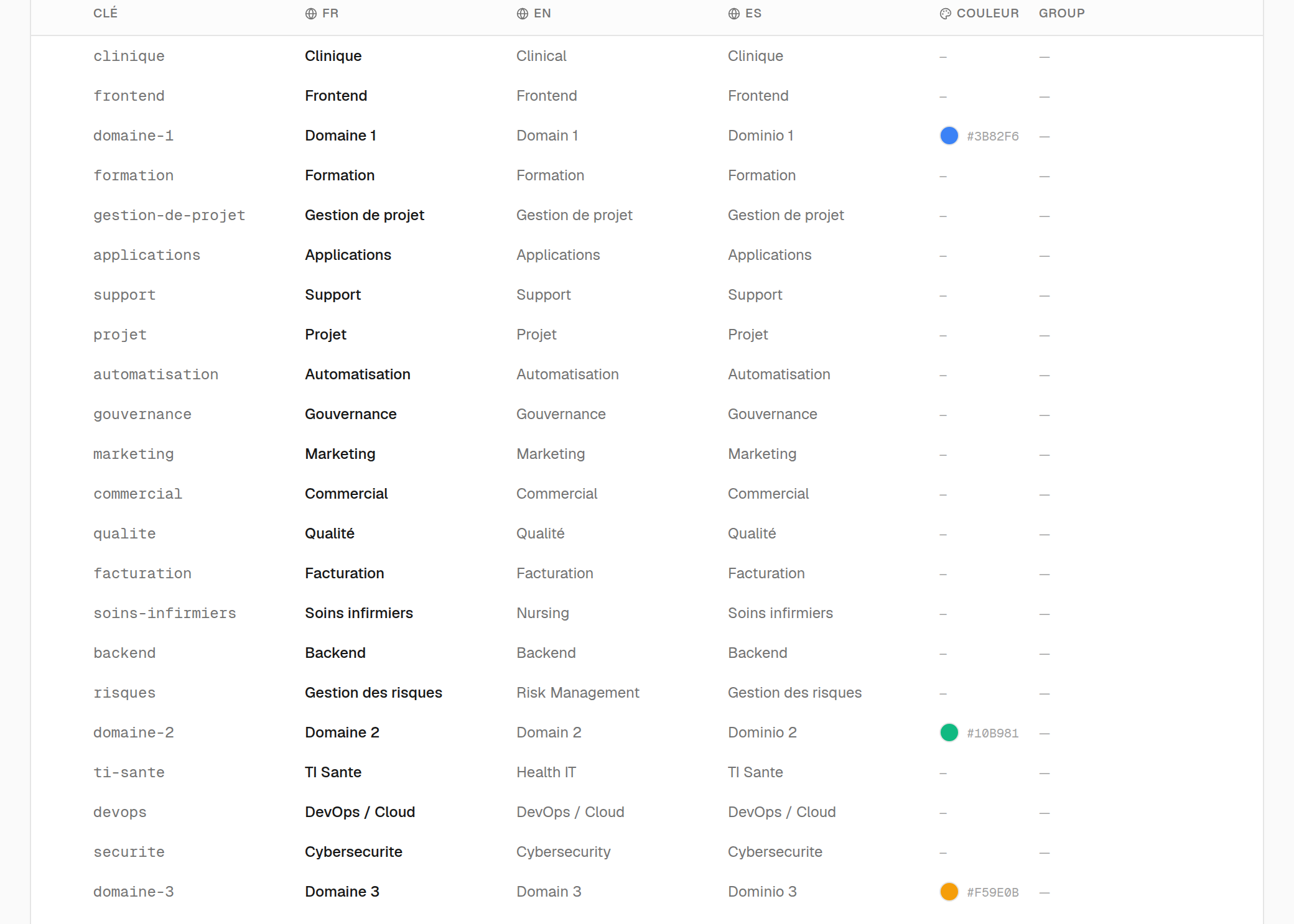
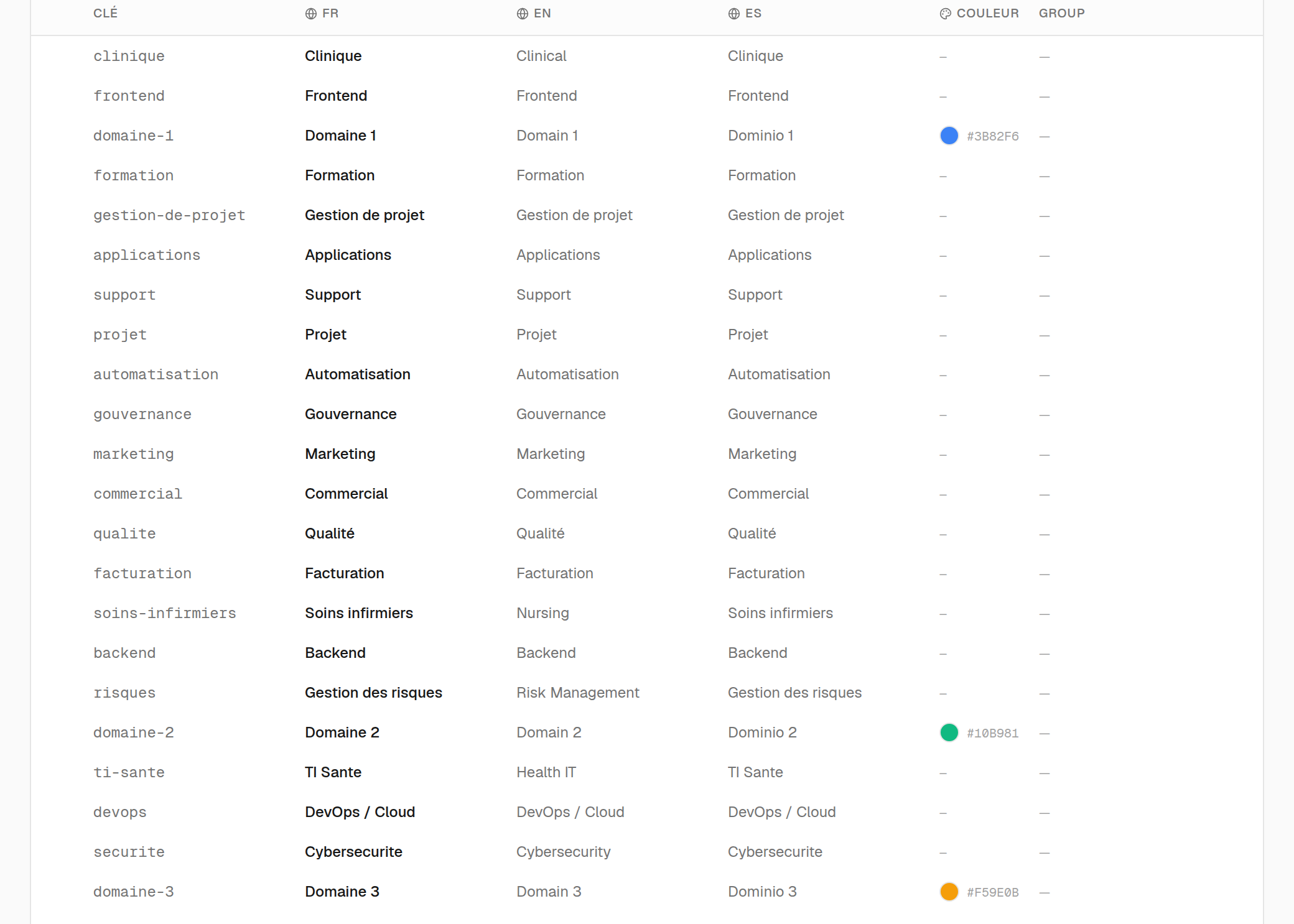
Domains, stakes, statuses, units: these lists decide the vocabulary the whole product then displays — the Gantt, the Kanban, the filters, the reports. A workspace that keeps the demo values speaks a language that is not its own, and every task filed there carries someone else's word.
- 1.Add a value with its technical key and FR/EN/ES labels
- 2.Reorder by drag and drop
- 3.Deactivate rather than delete a value in use
- 4.Colours are used in the Gantt and Kanban
To complete the team path: plan two places, assign one person to one task, then explain the 1/2 counter. Immediate replacement transfers only selected tasks. Sending an invitation reserves no place. In a small team, one authorised person can handle everything; an assignment coordinator may also manage assignments.